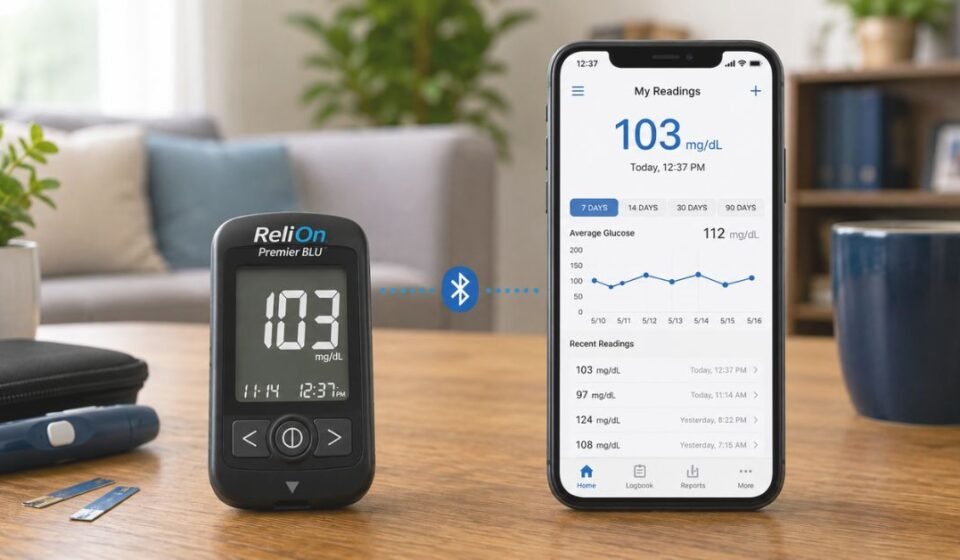

Checking blood sugar should not mean carrying a paper logbook everywhere. The Relion Premier Blu App solves this by sending your readings straight to your phone. This guide covers everything about the app, from setup to troubleshooting to daily use.
What Is the Relion Premier Blu App?
The Relion Premier Blu App links with the ReliOn Premier BLU glucose meter using Bluetooth. Readings move from the meter to your phone automatically, so manual logging is no longer needed.
The meter itself delivers results in five seconds and stores up to 1000 tests in memory. The app simply turns this stored data into something you can view and share instantly.
Is Relion Premier Blu App the Same as ReliOn Life?
Many people search for “Relion Premier Blu App,” but this is not the official title. The real app is called ReliOn Life, built by Walmart specifically for this meter and its sibling devices.
ReliOn Life is free on both the Google Play Store and the Apple App Store. Glooko is a separate third-party option covered later in this guide.
Key Features
The app offers several tools built for daily glucose tracking. Together, they help you understand your health patterns over time.
- Automatic Bluetooth syncing of glucose readings
- Logging of diet, activity, and mood
- Pattern tracking to spot trends in your sugar levels
- Sharing reports directly with your doctor
- Simple, easy-to-read result history
How Do I Check My Meter Version?
Before pairing, you must know your meter version. Both versions look identical from the front but pair through different steps.
Finding the Serial Number
Turn the meter over and check the back panel. A Serial Number starting with “SN(21)” is printed there, and it decides which pairing method you follow.
F051 Version
A serial number starting with SN(21)F051 means your device follows the standard pairing route. Note this number down before opening the app, since the setup screen may ask for it.
F088 Version
A serial number starting with SN(21)F088 means your device follows a slightly different pairing route. Always confirm this version first, since using the wrong steps can cause the pairing to fail.
How Do I Connect the App to My Meter?
Connecting the app to your meter takes only a few minutes. Follow these steps in order for a smooth setup.
Turn On Bluetooth
Open your phone settings and switch Bluetooth on. This step is required before the app can find your meter.
Start Pairing Mode
Press the meter’s center button to open its Bluetooth settings. Press the side arrow buttons until “PAIR” blinks on the screen.
Enter the PIN
The meter displays a six-digit PIN on its screen. Enter this exact PIN into the app when it asks for one.
Confirm Sync
The app checks the PIN and links the two devices within seconds. Once linked, it automatically pulls your stored readings and displays them in a scrollable history list, ready for review or sharing.
Why Won’t My Bluetooth Pair?
Some users face connection problems, and this is a common concern. Pairing issues can occur even on updated phones.
Common Causes
Bluetooth pairing often fails due to outdated phone software or weak signal range. A low meter battery can also block the connection.
Android Fix
On Android phones, open the app and turn on “background syncing” from the settings menu. This keeps the connection active even when the app is closed.
iPhone Fix
On iPhone, background syncing is already turned on by default. If pairing still fails, restart both the phone and the meter, then try again.
Does the App Sync with Apple Health?
Yes, ReliOn Life syncs tracked entries with Apple Health on iOS devices, keeping all your health data in one place. Android users looking for Google Health Connect support should check MedM, a separate ReliOn companion app built with that feature.
Best Alternative Apps
A few other trusted apps also work with the Premier BLU meter.
| App Name | Best For |
| Glooko | Sharing data with healthcare teams |
| MedM | Extra features like PDF reports |
| Tidepool | Uploading data from a computer |
Glooko
Glooko is a digital health platform built for diabetes management. It pairs with the meter and lets doctors review your data remotely.
MedM
MedM is a companion app with added features. These include notifications, PDF report generation, and Google Health Connect support.
Tidepool
Tidepool lets you upload meter data using a computer and cable. It works well for users who prefer desktop tracking over mobile apps.
Which One to Choose
Pick ReliOn Life for simple, everyday tracking straight from your phone. Pick Glooko or Tidepool if you regularly send detailed reports to a doctor, and pick MedM if Google Health Connect or PDF exports matter to you.
Does This App Work with Other ReliOn Meters?
Yes, ReliOn Life supports several meters beyond the Premier BLU. These include the Premier Voice, Premier Classic, Compact, and Prime models. One app can manage multiple ReliOn devices if you own more than one.
User Reviews – Pros & Cons
Real users have shared mixed experiences with this app online. Looking at both sides gives a fair picture before you start using it.
Pros:
- Fast five-second test results
- Easy Bluetooth syncing for most users
- Free to download and use
Cons:
- Occasional Bluetooth disconnects on some phones
- No Face ID login support on iPhone
- Password reset required every 90 days
How Does This App Help in Daily Diabetes Management?
The app removes the need for manual logbooks and paper tracking. This saves time and reduces the chance of recording errors.
Our team tried this app for daily tracking, and the pattern charts genuinely made doctor visits faster. Seeing trends over weeks helps patients and doctors make better care decisions together.
FAQs
How do I connect ReliOn Premier Blu to my phone?
Turn on Bluetooth, open the ReliOn Life app, and enter the PIN shown on your meter screen.
Does ReliOn Premier Blu have an app?
Yes, it works with ReliOn Life and also supports Glooko as an alternative.
Is there an app for ReliOn Premier BLU on iPhone?
Yes, ReliOn Life is available for free on the Apple App Store.
How do I use the ReliOn Premier Blu meter?
Insert a test strip, apply a small blood sample, and read your result within five seconds.
What if my meter’s serial number does not match F051 or F088?
Check the meter box or contact ReliOn support, since older versions may need a different pairing method.
Can I use Glooko instead of ReliOn Life?
Yes, Glooko is fully compatible with the Premier BLU meter and offers extra data-sharing options.
Conclusion
The Relion Premier Blu App, officially called ReliOn Life, makes glucose tracking simple and paperless. It connects easily through Bluetooth and works alongside trusted alternatives like Glooko, MedM, and Tidepool. With correct setup, this app can become a helpful daily tool for managing diabetes.
Disclaimer:
This article is for informational purposes only and does not replace professional medical advice. Always consult your doctor or the official ReliOn/Walmart support team for medical or technical guidance.
Read more topics on :Instamagazine.co.uk